Loading...
Turn scanned family prints, faded portraits, and historical photographs into natural color images.
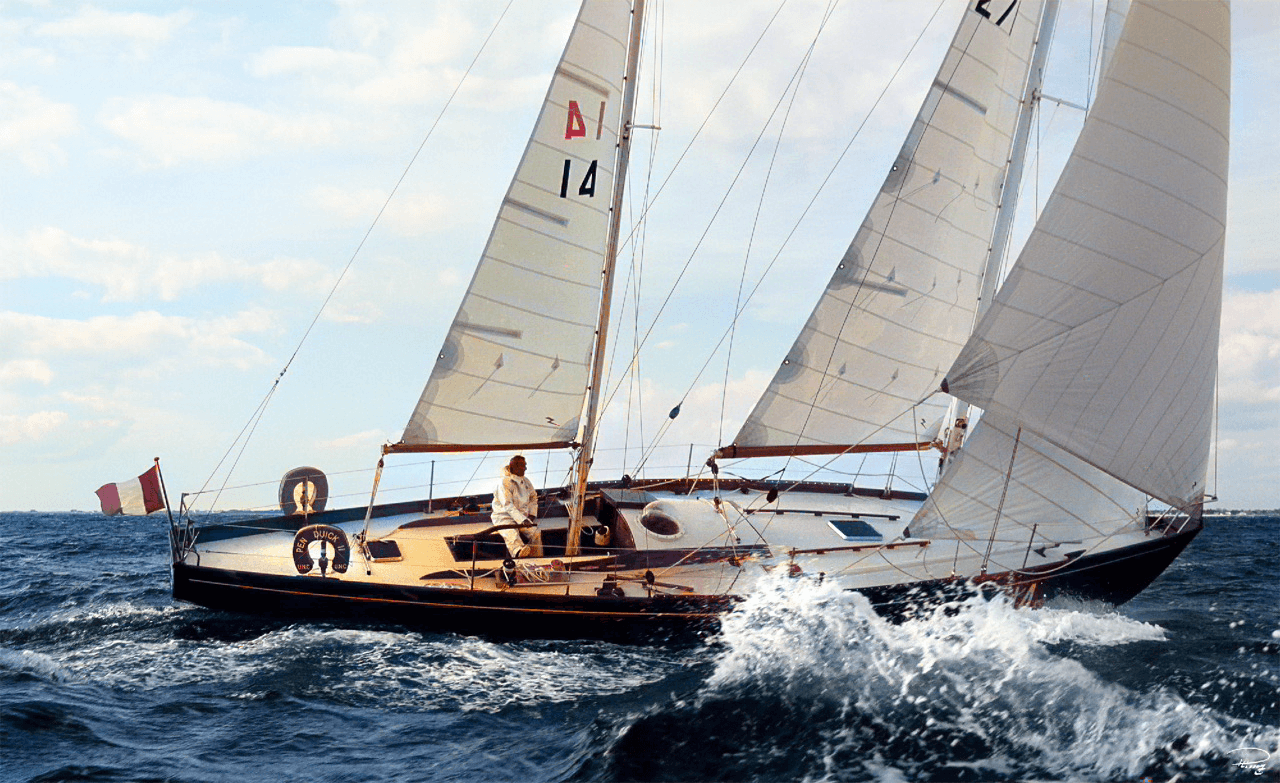
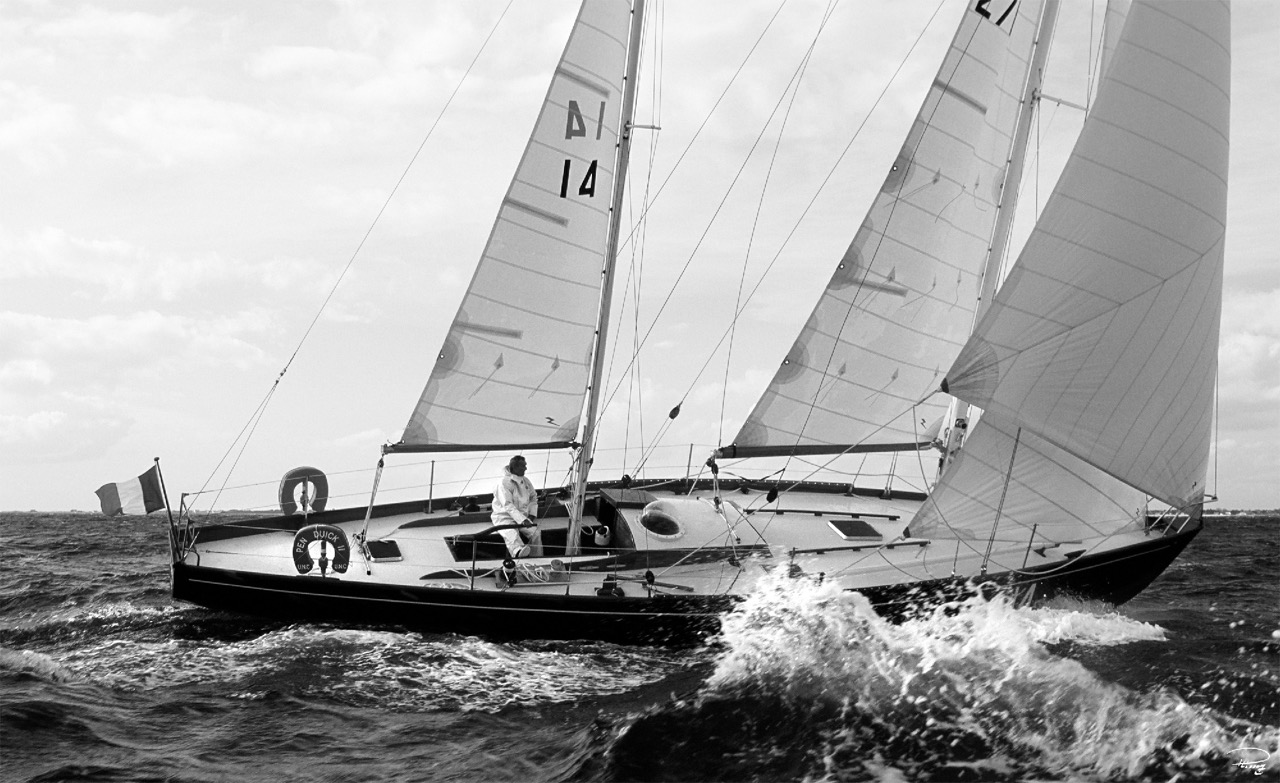
Old photographs come with their own problems: fading, sepia tint, scratches, creases, and the soft focus of early cameras. The colorization models here were chosen with that in mind. The default model handles clean scans; the Restore & Colorize option repairs damage and adds color in a single step, which is usually the right choice for prints older than a few decades.
Seeing a grandparent's wedding photo or a great-uncle's service portrait in color for the first time is what this tool is for. Upload a scan above and compare the result side by side with the slider — the original file is never modified.
New to this? Start with how to colorize a black and white photo — or just try it above; it's free, with no watermark.
Scan or photograph the print, upload it with the tool above, and click "Colorize Photo". The AI recognizes faces, clothing, and backgrounds typical of older photographs and adds realistic color. For damaged prints, pick the "Restore & Colorize" model to repair and colorize in one pass.
Yes. The "Restore & Colorize" model option repairs common damage — scratches, creases, spots, and fading — while adding color, which is usually what very old prints need.
A flatbed scanner at 600 DPI gives the best results. If you do not have a scanner, photograph the print straight-on in bright, even daylight without flash, avoiding shadows and glare. The sharper and more evenly lit the scan, the better the colorization.
Yes. Sepia-toned and yellowed prints colorize just as well as pure black and white — the AI treats the underlying image the same way and replaces the aged tint with natural color.
No. Your original file is untouched — the tool produces a new, colorized copy that you download separately, so the scan of your original stays exactly as it was.
Nothing for standard colorizing — it is free, with no watermark on the result and no account required. The optional Restore & Colorize model, which handles torn or badly faded prints, needs a free account and one credit per photo. See the free photo colorizer page for what the free tier covers.